Kingdom Architect Tycoon PC Controls Guide
Keyboard and mouse patterns for building a medieval kingdom on desktop Roblox.
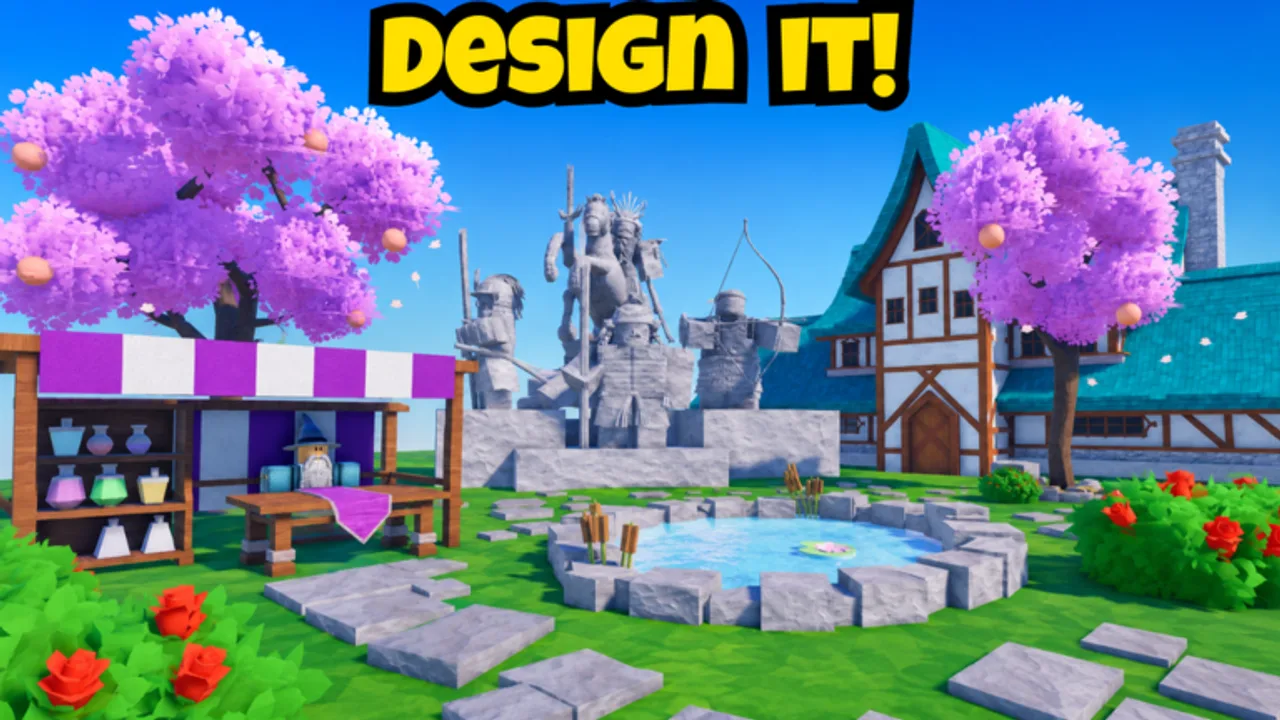
Playing Kingdom Architect Tycoon on PC gives you the widest camera view and the fastest menu switching — when you know where Roblox and Finite Works hid the buttons. This guide covers desktop and laptop controls for the medieval builder tycoon beta on Roblox. Exact keybinds can change between patches; we list industry-standard Roblox defaults plus tycoon-specific habits that stay useful even when a label moves.
Before you start
- Launch Kingdom Architect Tycoon on Roblox from the desktop app or browser with hardware acceleration enabled.
- Finish the in-experience tutorial so the full HUD appears — partial UI hides build categories.
- Set Roblox graphics to a stable FPS; stutter during placement causes mis-clicks on markets and roads.
- Read Getting Started if this is your first session, then Early Game Buildings for purchase order.
Movement and camera
Avatar movement
Roblox PC defaults:
| Input | Action |
|---|---|
| W A S D or arrow keys | Move avatar forward/back/strafe |
| Space | Jump (minor use in tycoons, occasional terrain steps) |
| Shift | Walk slower when held (if enabled in Roblox settings) |
Kingdom Architect Tycoon is not a platformer — you move to collect payouts and preview placement angles, not to fight enemies. Optimize a short walking loop through house and market rows instead of sprinting across the whole kingdom every time.
Camera control
| Input | Action |
|---|---|
| Right mouse button + drag | Rotate camera around avatar |
| Mouse wheel | Zoom in/out |
| Middle mouse drag (if supported) | Pan view in some Roblox experiences |
Tycoon habit: hold right mouse, orbit your district once before placing long wall lines — walls are hard to undo. For large kingdoms after land expansion, zoom out until every owned tile is visible, then zoom in only for decor from Decor and Terrain.
Shift lock (optional)
Some players enable Shift Lock in Roblox settings for fixed camera follow. Builder tycoons often play better with free camera; try both for collection comfort.
Build menu and placement
Finite Works organizes houses, markets, roads, towers, walls, gardens, terrain, water, trees, and decorations in category tabs — typical Roblox tycoon layout along the left or right screen edge.
Opening the build UI
Look for icons labeled Build, Shop, hammer/wrench art, or category names. Beta patches may rename these — scan top and side bars after each beta update.
Steps:
- Click the build/shop entry point
- Click a category (e.g., Houses)
- Click the specific structure
- Move cursor over valid ground — green or white preview usually means legal placement
- Left click to confirm and start timer
- Click cancel or press Esc if Roblox captures menu focus (behavior varies)
If placement fails, you may be on locked land, overlapping another timer pad, or missing a prerequisite unlock from the building tier list.
Rotate and fine-tune
Many tycoons support:
| Input | Action |
|---|---|
| R | Rotate piece 90° before confirm |
| On-screen rotate arrows | Click when keyboard rotate unavailable |
Use rotation on gates, corner walls, and asymmetric decor so roads align. Straight markets usually snap to grid without rotation.
Terrain and water tools
Terrain categories may use click-drag sculpt modes instead of single-click placement. Expect:
- Click + drag to raise/lower
- Modifier keys or toggle buttons for brush size (varies by experience)
- Slower performance on low-end laptops when sculpting large areas
Sculpt after income pads are set — see Decor and Terrain for order of operations.
Collection and income
Income buildings flash, emit particles, or show floating cash symbols when ready — standard tycoon language.
Collection methods on PC:
- Walk avatar into proximity triggers
- Click building directly if click-to-collect is enabled
- Press E or F near prompts in some Roblox tycoons (confirm in your session — beta may omit key prompts)
Run one full lap after timers finish: houses → markets → any garden income → back to build menu. Pair with offline progression by collecting everything before logout.
Roblox system shortcuts
These are Roblox client shortcuts, not game-specific:
| Input | Action |
|---|---|
| Esc | Open Roblox menu (leave, reset, settings) |
| Tab | Leaderboard / player list if enabled |
| /` | Developer console in Roblox Studio only — not live game |
Use Esc to access Roblox Settings → Shift Lock, graphics, volume without leaving the kingdom.
Shop, gamepasses, and codes UI
Gamepass prompts (Land Expansion 399 Robux, 2x Timer Speeds 999 Robux, Infinite Money 2999 Robux) usually appear in an in-experience store button or Roblox-native purchase dialog. Compare value in the gamepass guide before buying during a frustrated mis-click moment.
No active codes exist as of August 2026. When codes appear, the input box often lives near the same shop cluster — follow How to Redeem Codes for PC-specific hunting.
PC settings for cleaner building
- Fullscreen reduces accidental browser clicks
- Mouse sensitivity. lower sensitivity helps precise decor placement
- Graphics mode. manual mode with reduced shadows can improve visibility of small collect prompts at night
- Resolution. 1080p minimum recommended for readable build menu text
Layout habits that reduce mis-clicks
From build layouts and earn money fast:
- Keep markets on the side nearest your habitual camera angle after spawn
- Avoid placing decor between market and camera — mis-clicks buy benches instead of collecting
- Leave one-tile gaps before walls so click targets stay large
- Batch same-category placements (all houses, then all roads) to minimize menu tabbing
Track milestones on the progression checklist so you know when to switch from income grinding to decor camera work.
When PC controls feel wrong
If keys stop responding:
- Click the game viewport to restore focus after alt-tabbing
- Check Roblox chat bar is not open
- Rejoin the experience after a patch — beta UI scripts break on stale sessions
- Compare mobile controls if you hybrid-play; muscle memory differs
Related pages
- Controls Hub — overview and PC vs mobile table
- Mobile Controls — if you alternate devices
- Buildings Hub — what to build once inputs are smooth
- Codes — redemption overlaps shop UI
- Scripts — executors are not a substitute for learning legitimate PC controls
- Updates — patch notes for UI changes
PC is the best platform for planning a kingdom grid; master camera orbit and collection laps first, then chase castle screenshots second.
Frequently Asked Questions
Quick answers for Kingdom Architect Tycoon players.
What keys move the character on PC?
WASD or arrow keys in standard Roblox PC controls. Kingdom Architect uses movement mainly for collecting building payouts.
How do I rotate buildings on PC?
Try R before placing, or use on-screen rotate buttons if the beta omits keyboard rotate.
Why cannot I place a building on PC?
Common causes: unowned land, overlapping pads, or locked unlock tier. Check [Early Game Buildings](/tier-list/early-game-buildings/) for prerequisites.
Do PC controls change after updates?
UI buttons can move in beta patches. Watch [beta updates](/updates/beta-updates/) when menus look different.